

A common query when initially getting to grips with DJI's Inspire 2 is linking the Inspire 2 Remote Controller to the Aircraft. The Controller and the Aircraft should be pre-linked when they arrive. But if you see a flashing yellow light on the rear of the Aircraft and a solid red light on the Remote Controller, you will need to re-connect the two. heliguy™ has put together this easy to follow, step by step guide to help our customers understand how this process works. Of course, if you are still having issues after syncing the Remote and the Aircraft, feel free to give our support team a call for more diagnostic ideas and advice - 0191 296 1024. 1 - Connect your Remote Controller and whichever mobile device you use with the Aircraft (making sure that you have the most up to date version of the DJI GO 4 app installed). 2 - Power on the Remote Control and the Aircraft.  3 - Launch the DJI GO 4 App on your mobile device.
  4 - Tap the "Remote Control" icon in the status bar at the top of the screen to open "Remote Controller Settings".
  5 - Then, at the bottom of the menu that appears on the right-hand side of the screen, tap the "Linking Remote Controller" option.
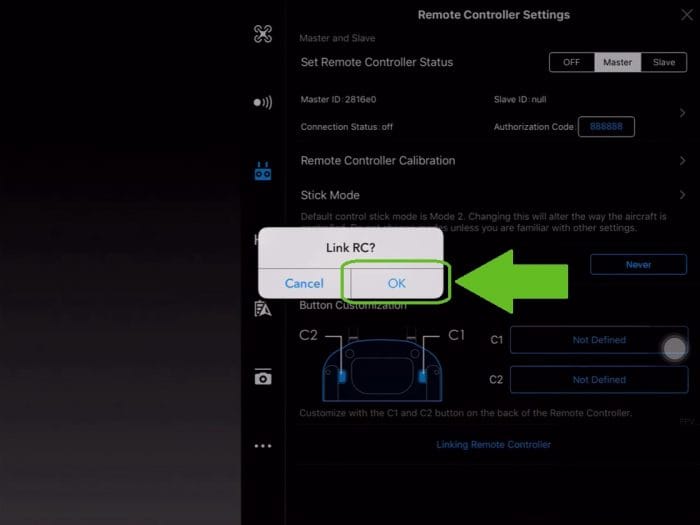
  6 - A pop-up will then ask you if you want to link the Remote, select "OK".
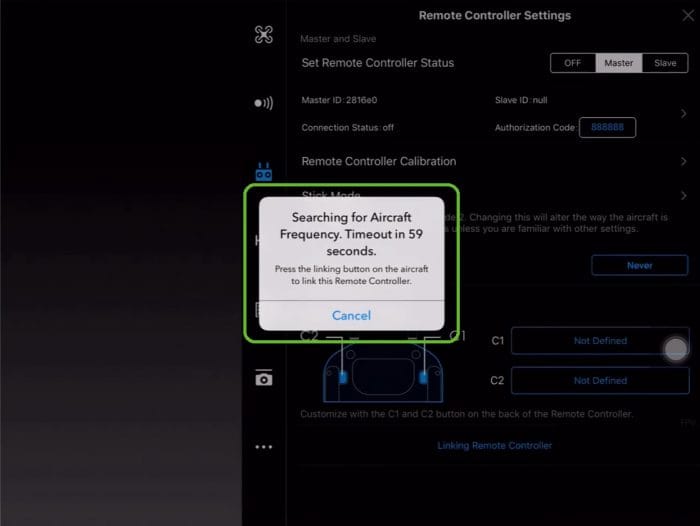
  7 - The app will then tell the Remote Controller to search for the Inspire 2 Aircraft, you will see a pop-up that explains this process on your mobile device.
  8 - You will see a blue flashing light on the Remote Controller and it will make a beeping sound. This indicates that the Remote Controller is ready to be paired with the Aircraft.
  9 - Press the "Pair" button on the front of the Aircraft, which you can see on the front nose of the Inspire 2 quadcopter body.
  10 - After a few seconds, the LED next to the pair button and the LED on the Remote Controller will turn green, indicating a successful pairing.
  Congratulations - your Inspire 2 drone is now linked successfully with your Remote Controller. If you have any problems with this process or you need more assistance, please don't hesitate to email our team on info@heliguy.com or call on 0191 296 1024.
3 - Launch the DJI GO 4 App on your mobile device. 4 - Tap the "Remote Control" icon in the status bar at the top of the screen to open "Remote Controller Settings". 5 - Then, at the bottom of the menu that appears on the right-hand side of the screen, tap the "Linking Remote Controller" option. 6 - A pop-up will then ask you if you want to link the Remote, select "OK". 7 - The app will then tell the Remote Controller to search for the Inspire 2 Aircraft, you will see a pop-up that explains this process on your mobile device. 8 - You will see a blue flashing light on the Remote Controller and it will make a beeping sound. This indicates that the Remote Controller is ready to be paired with the Aircraft. 9 - Press the "Pair" button on the front of the Aircraft, which you can see on the front nose of the Inspire 2 quadcopter body. 10 - After a few seconds, the LED next to the pair button and the LED on the Remote Controller will turn green, indicating a successful pairing. Congratulations - your Inspire 2 drone is now linked successfully with your Remote Controller. If you have any problems with this process or you need more assistance, please don't hesitate to email our team on info@heliguy.com or call on 0191 296 1024.
More DJI Inspire 2 Tutorials
- Update the Firmware on your DJI Inspire 2 Aircraft
- How to Update Inspire 2 Remote Controller Firmware
- Activate your DJI Inspire 2
Subscribe to our YouTube Channel for Exclusive DJI News, Reviews and Advice


Leave a comment